Getting Started
Right after your first login, BidCompass walks you through four setup steps. You can revisit this anytime from the "Getting Started" link in the sidebar.
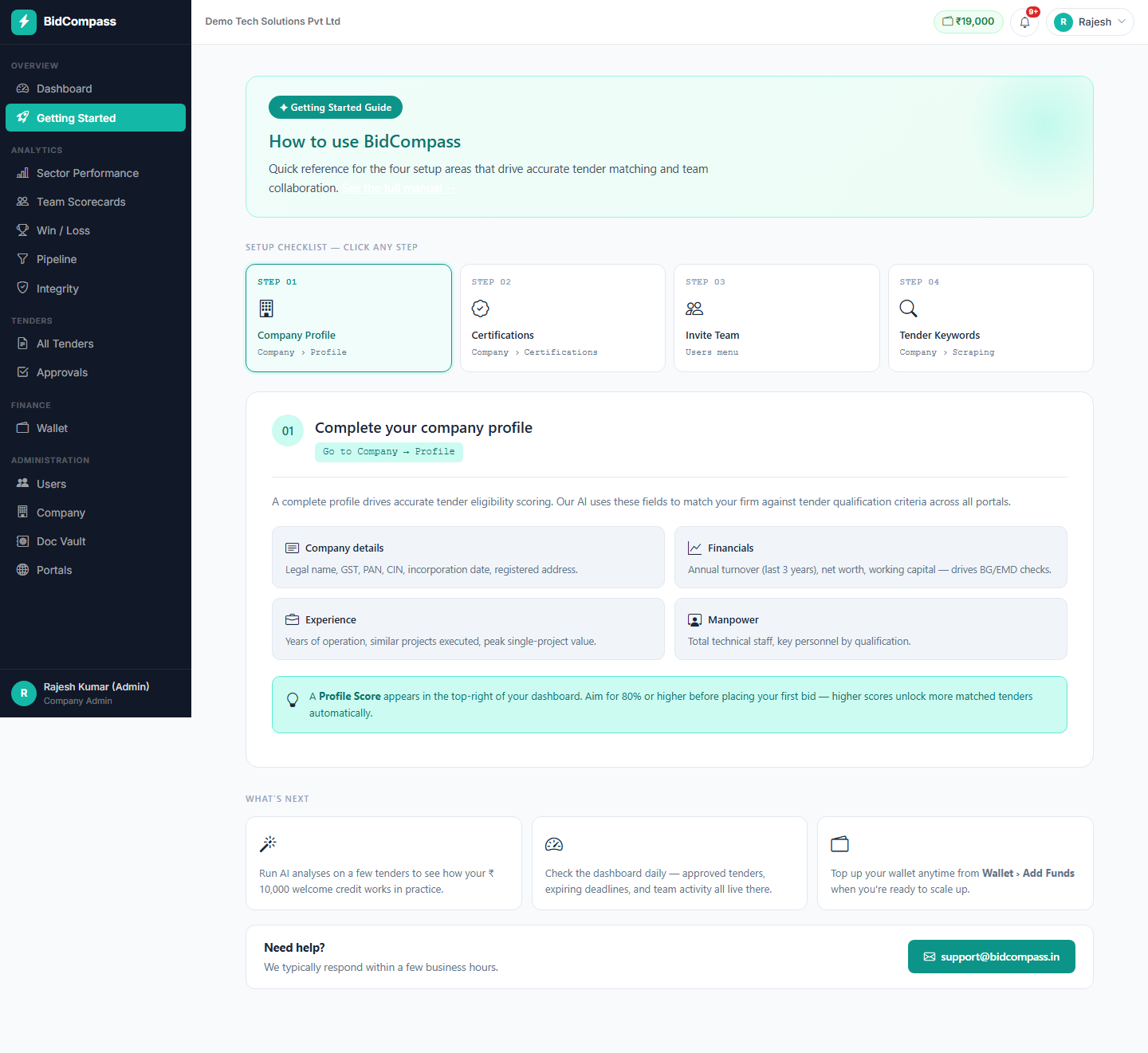
Complete your Company Profile
Fill in turnover, employee count, MSME status — or use AI Auto-fill to do it from a document in seconds.
Add your Certifications
ISO certificates, GeM registration, NSIC, MSME/Udyam — these are matched against every tender's eligibility criteria.
Add your Team
Invite colleagues and assign them to specific sectors so tenders route to the right person automatically.
Set your Tender Categories
Tell BidCompass which portals, keywords and value ranges to watch — this drives the daily auto-discovery.
Dashboard
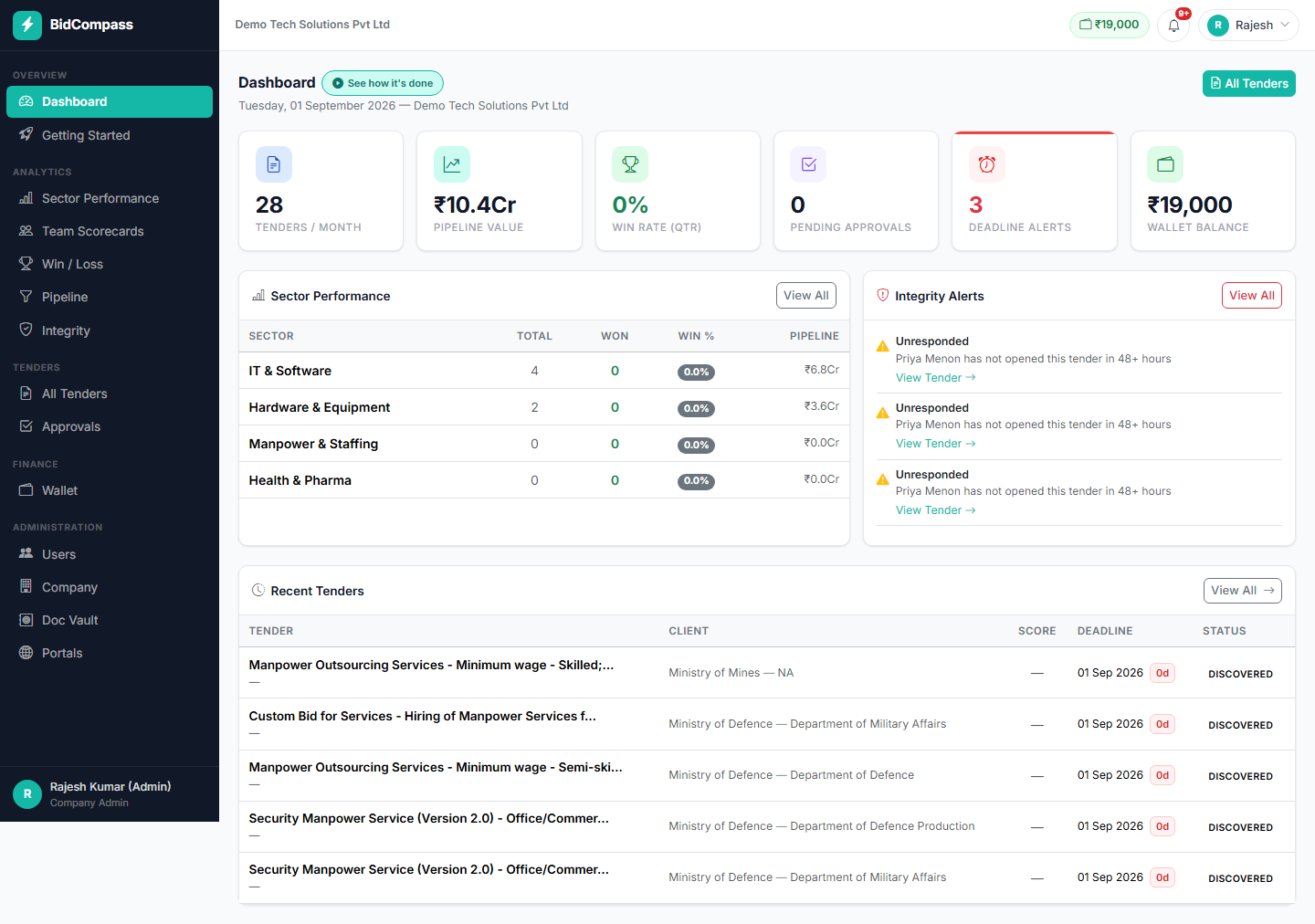
Your dashboard shows what needs attention today: pipeline value, deadline alerts, sector performance and tenders nobody has responded to yet.
Check your key numbers
Tenders this month, pipeline value, win rate, pending approvals, deadline alerts and wallet balance — all at the top.
Review Sector Performance
See which sectors are winning and which have tenders sitting untouched, broken down by pipeline value.
Act on Integrity Alerts
Tenders nobody has opened in 48+ hours are flagged here so nothing slips through before a deadline.
Company Profile
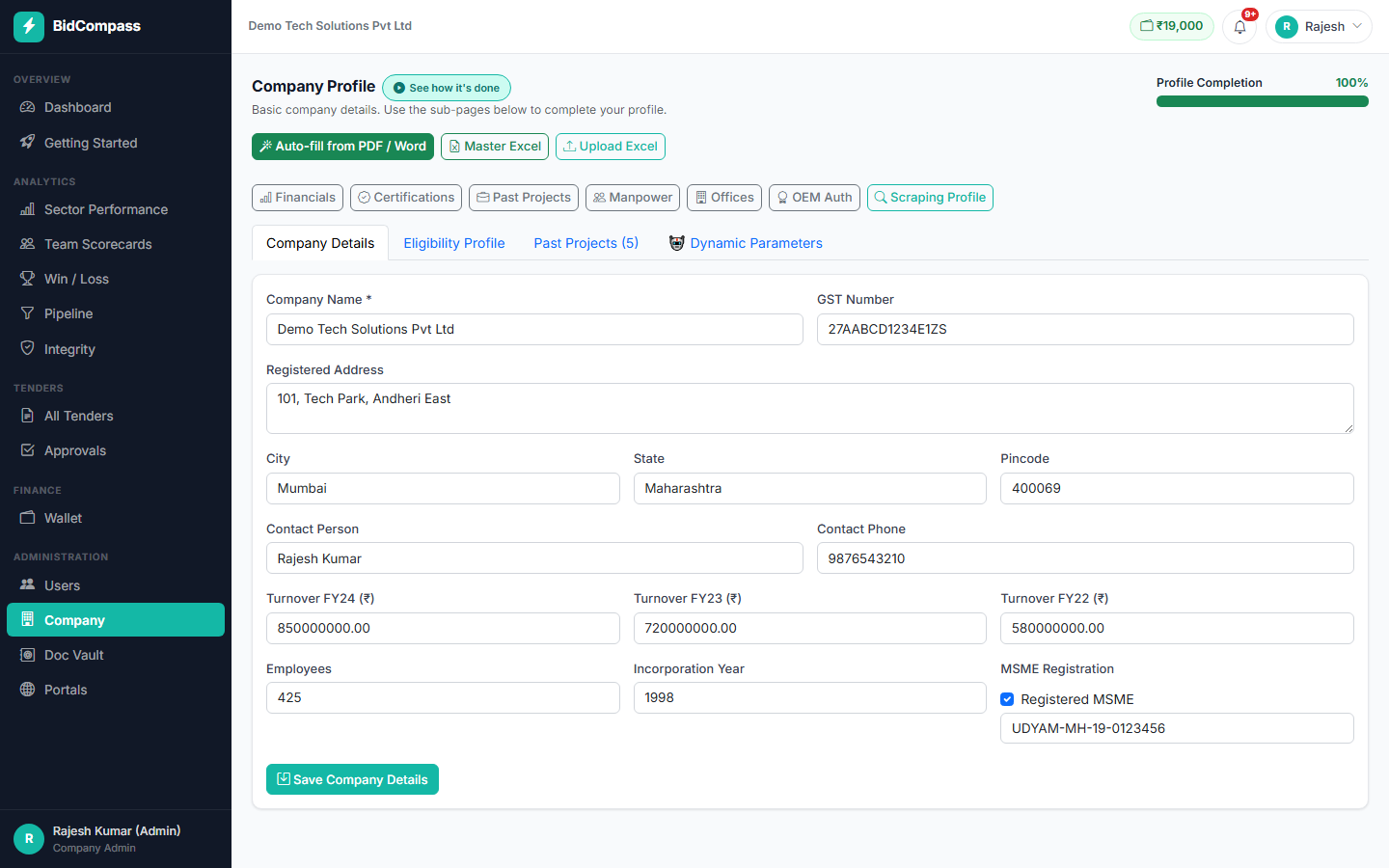
This is the data every eligibility check is run against. The more complete it is, the more accurate — and the fewer gaps you'll see on real tenders.
Sub-pages available:
Fill in Company Details
Name, GST number, registered address, turnover for the last 3 years, employee count, incorporation year and MSME registration.
Watch your Profile Completion %
Shown top-right on every profile page — aim for 100% before running eligibility checks.
Fill the rest via the sub-pages
Financials, Past Projects, Manpower, Offices and OEM Authorizations each have their own short form — most tenders only need a few of these.
AI Auto-fill from PDF/Word
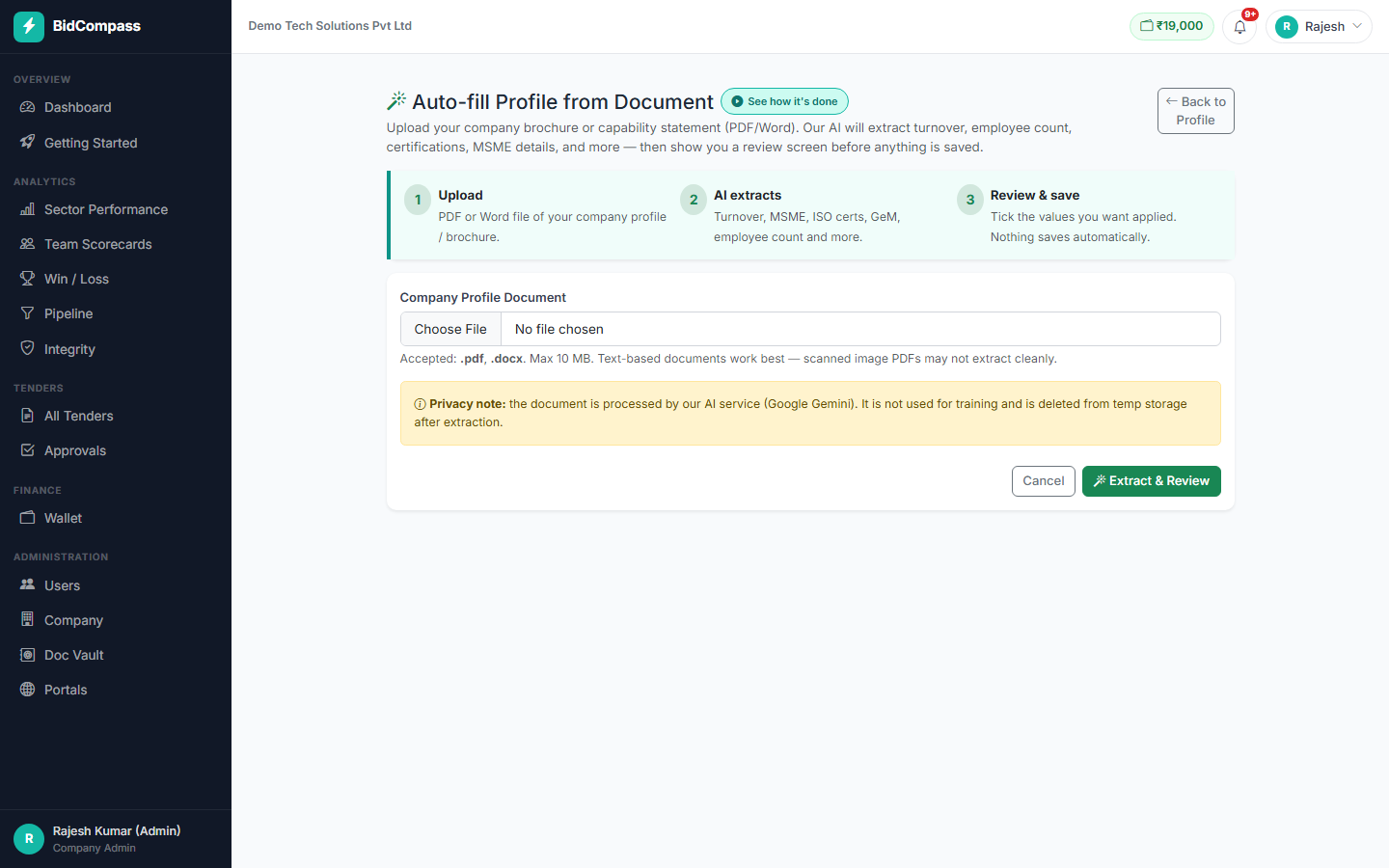
Already have a company brochure or capability statement? Upload it and let AI build your profile — instead of typing everything by hand.
Click "Auto-fill from PDF / Word"
Found at the top of the Company Profile page.
Upload your document
PDF or .docx, up to 10 MB. Text-based documents extract best — a scanned image PDF may not.
AI extracts the data
Turnover, MSME status, ISO certificates, GeM ID, employee count and more are pulled out automatically.
Review before saving
Nothing is saved automatically — you tick which extracted values to apply, side-by-side with what's already in your profile.
Certifications & Registrations
Every eligibility check compares tender requirements against the certifications you've added here — this is one of the highest-impact sections to keep current.
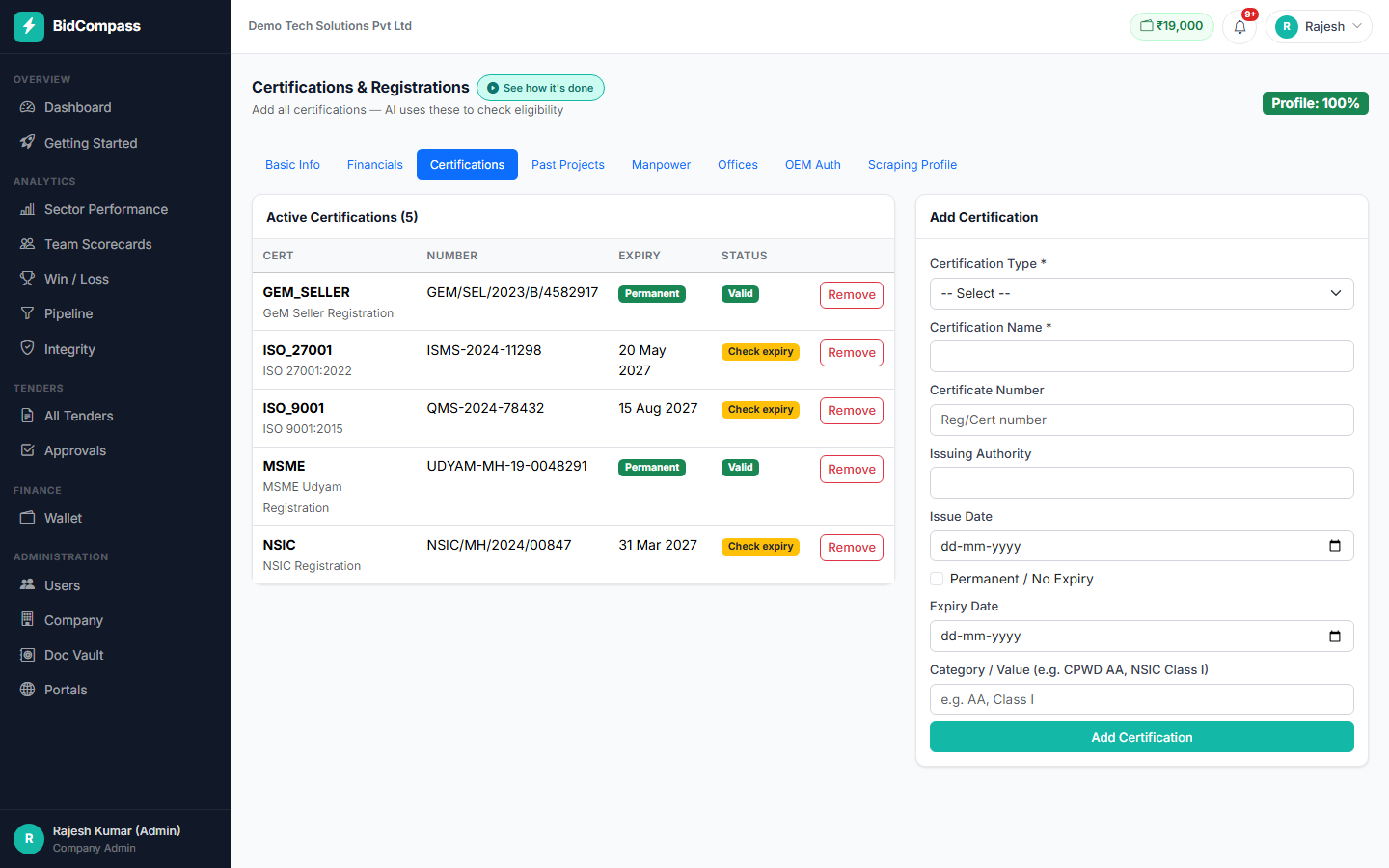
Supported certification types:
Click "Add Certification"
Choose a type from the dropdown — each has a matching search key the eligibility engine looks for.
Enter the details
Certificate number, issuing authority, issue date and expiry date (or mark it Permanent / No Expiry).
Watch expiry status
Certificates show a live "Valid" or "Check expiry" status so you never bid with an expired document.
Team & User Roles
Add your colleagues and give each one exactly the access they need — from full billing control down to read-only.
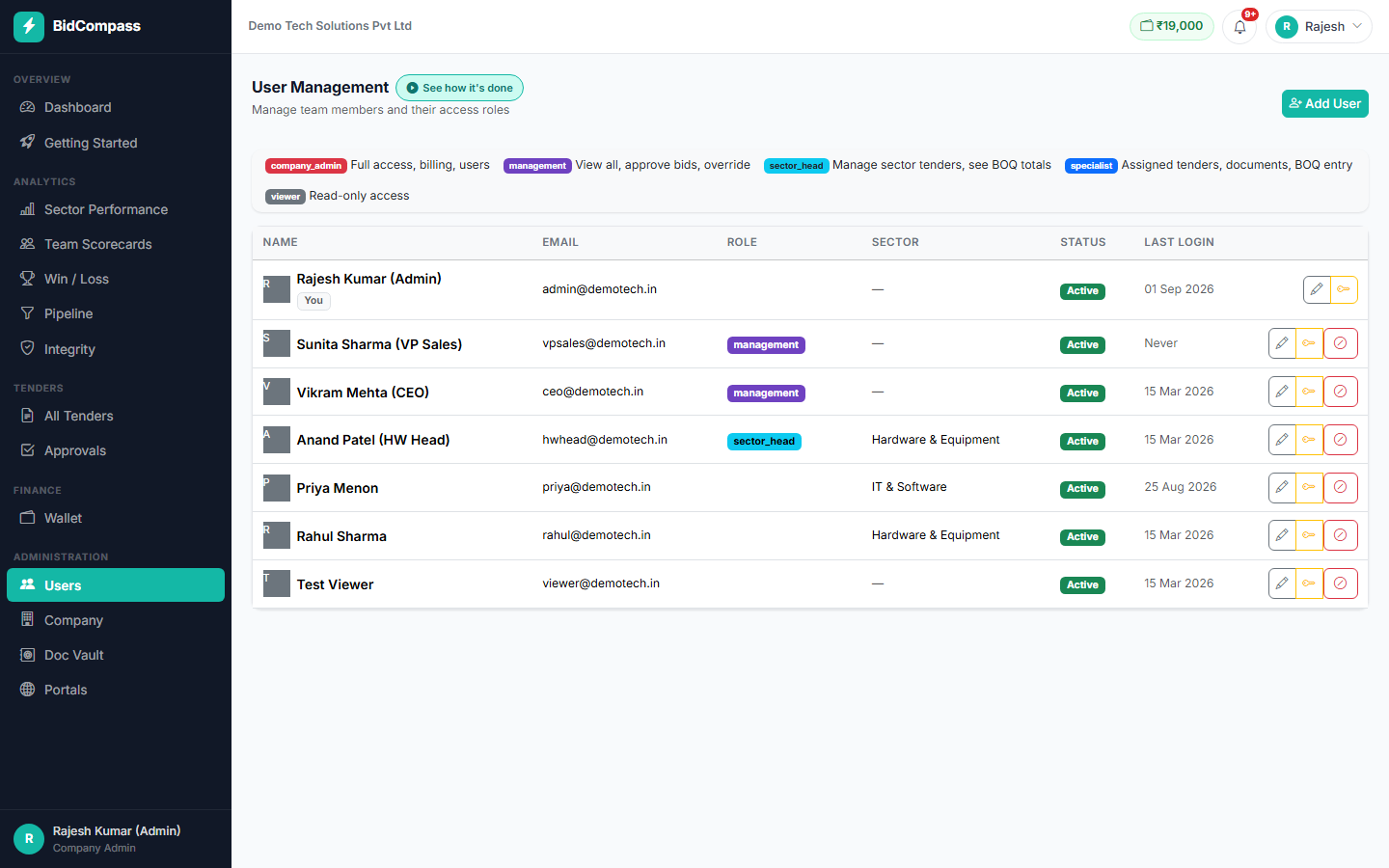
| Role | Access |
|---|---|
| Company Admin | Full access, billing, users |
| Management | View all, approve bids, override |
| Sector Head | Manage sector tenders, see BOQ totals |
| Specialist | Assigned tenders, documents, BOQ entry |
| Viewer | Read-only access |
Click "Add User"
Enter their name, email and choose a role.
Assign a sector (for Sector Head / Specialist)
This determines which tenders they see and work on — e.g. "Hardware & Equipment" or "IT & Software".
Manage existing users
Deactivate, edit or reset the password for any team member from the same list.
Tender Categories & Keywords
This is what actually drives auto-discovery — BidCompass fetches new tenders every day based on exactly what you set up here.
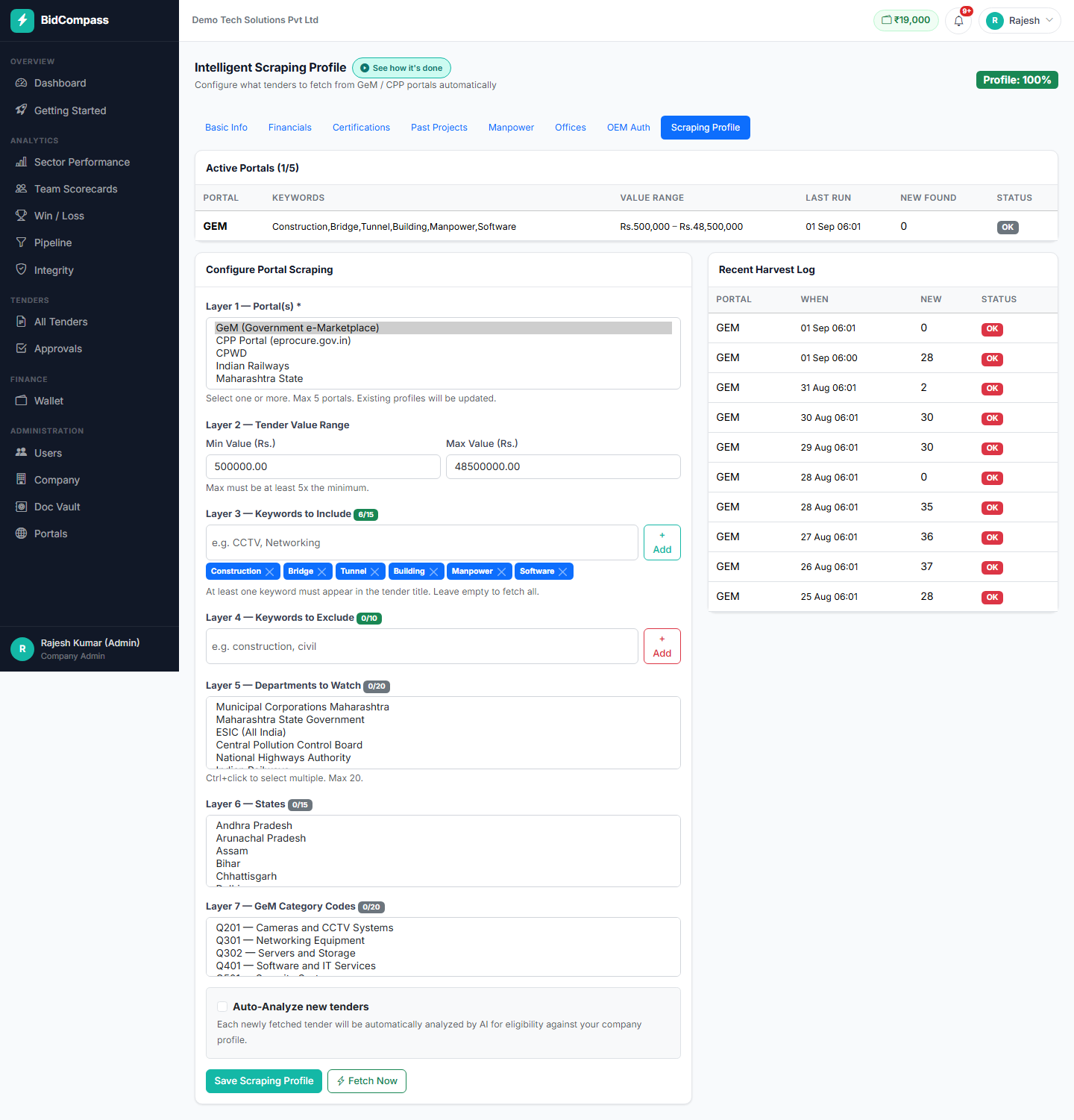
Choose your Portal(s)
GeM, CPP, CPWD, Indian Railways, Maharashtra State — pick up to 5.
Set a Tender Value Range
Minimum and maximum tender value in ₹ — the maximum must be at least 5x the minimum.
Add Keywords to Include
Up to 15 keywords — at least one must appear in the tender title. Leave empty to fetch everything.
Add Keywords to Exclude (optional)
Up to 10 — filters out tenders you never want to see, even if they match your other criteria.
Pick Departments, States & GeM Category Codes (optional)
Narrow further to specific buyers, states, or GeM product categories.
Turn on Auto-Analyze
Every newly fetched tender is automatically run through the AI eligibility check — no manual step needed.
Save, then check the Harvest Log
Shows every portal run, how many new tenders it found, and whether it succeeded — updated daily.
Browsing & Filtering Tenders
Every tender BidCompass discovers for you lands in one list — filterable by sector and status.
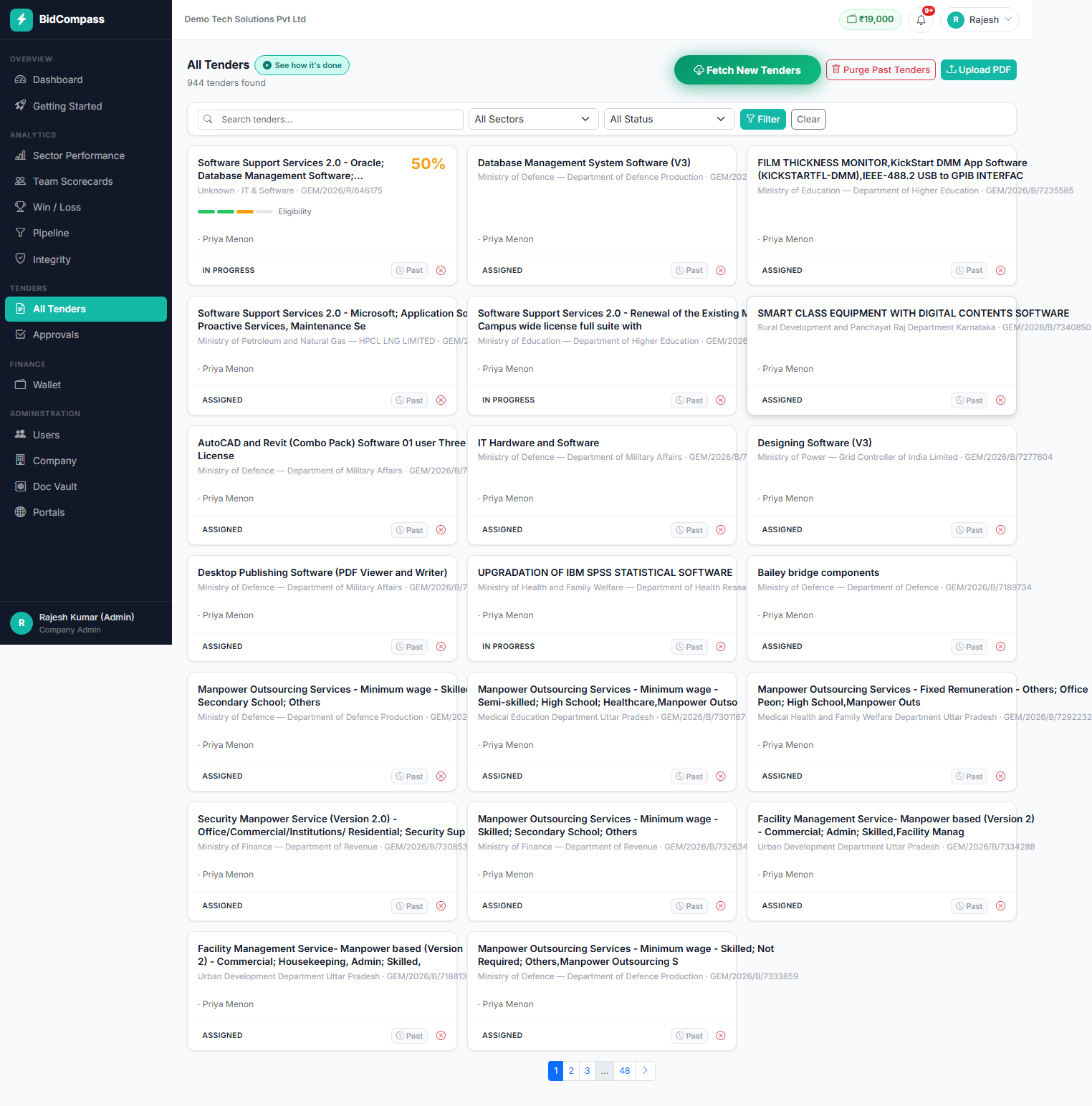
Filter by sector or status
From Discovered through Assigned, In Progress, Submitted, Won or Lost.
Click "Fetch New Tenders"
Runs your scraping profile filters on demand, instead of waiting for the daily automatic run.
Upload a tender PDF directly
Have a tender from outside GeM/CPP? Upload the PDF and BidCompass will analyze it the same way.
Skip tenders you don't want
One click removes a tender from your active pipeline without deleting the record.
Click a tender to open it
Takes you to the eligibility check, bid documents and BOQ for that specific tender.
Running an AI Eligibility Check
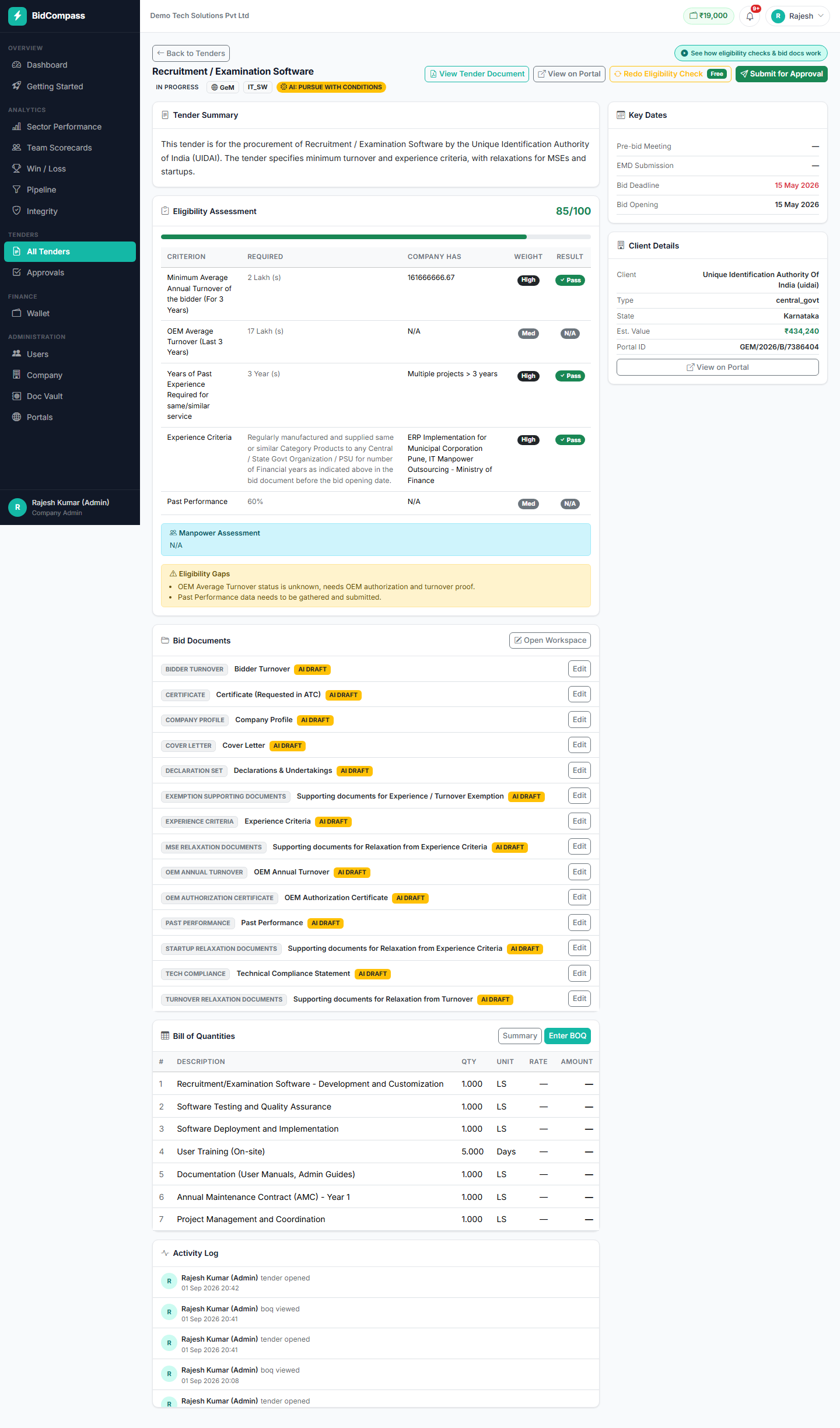
The core of BidCompass: AI reads the tender's actual eligibility clauses and checks each one against your company profile — before you spend a single hour preparing a bid.
Open a tender from your list
You'll see an AI-generated Tender Summary first — a plain-English read of what's actually being procured.
Read the Eligibility Assessment score
A score out of 100, with a criterion-by-criterion table: what's Required, what your Company Has, its Weight, and Pass/Fail Result.
Check the AI Recommendation
A clear verdict at the top — e.g. "Pursue", "Pursue with Conditions", or "Do Not Pursue" — so you can decide in seconds.
Read "How you can improve your chances"
Right under the score: a numbered list of exactly what is missing or at risk — e.g. "OEM turnover proof needed" — so you know precisely what to fix before you bid.
Re-run for free after updating your profile
Fixed a gap? Click "Redo Eligibility Check" — re-runs are free, so you can iterate until the score is right.
Generating Bid Documents
Once a tender looks worth pursuing, BidCompass drafts the full document set from your company data and the tender's own annexures.
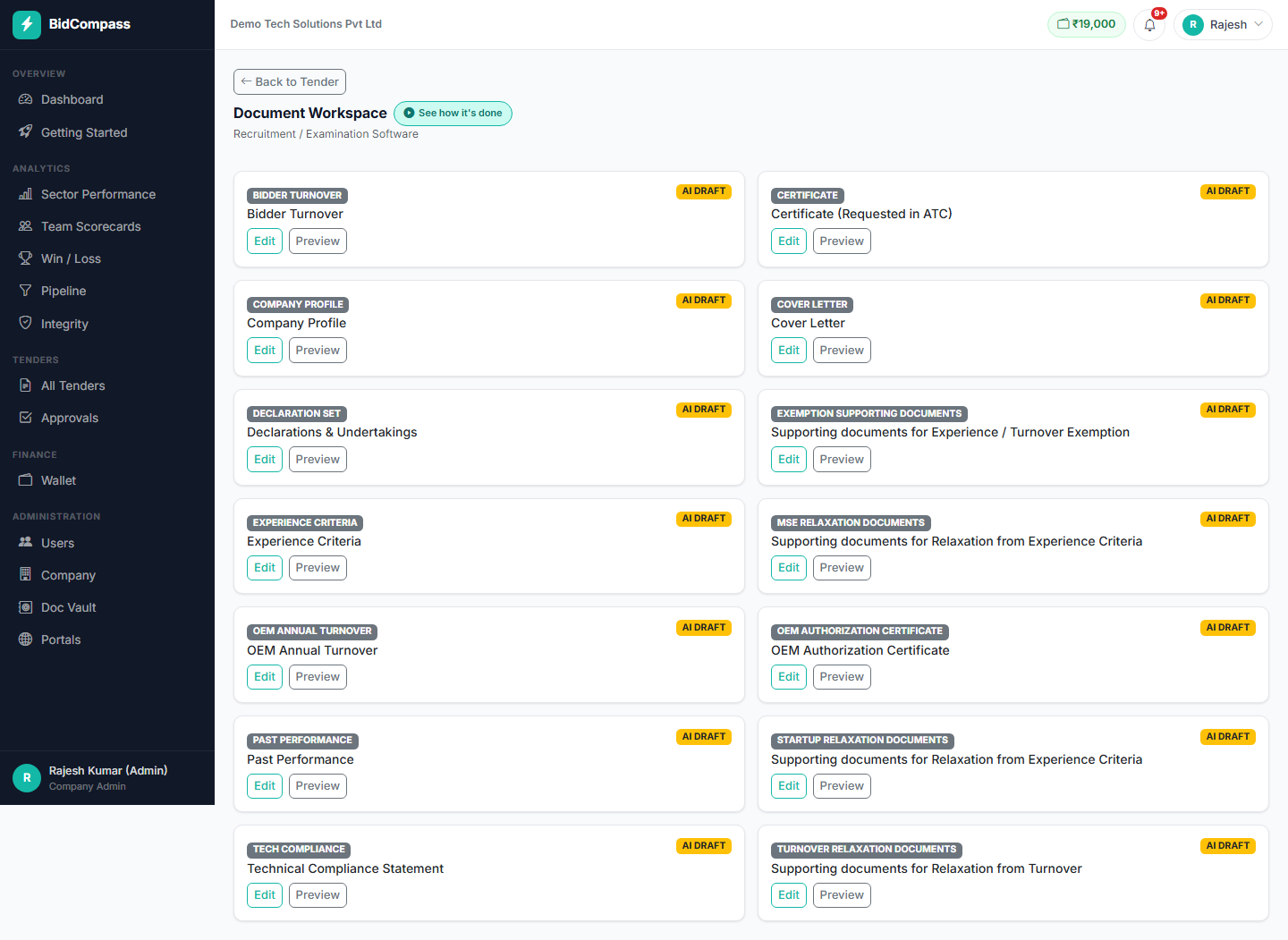
Documents BidCompass can generate:
Click "Open Workspace"
From the tender's Bid Documents section — shows every document type relevant to this tender.
AI drafts each document
Each one is marked "AI Draft" — generated from your company profile plus this specific tender's requirements. ₹2,000 per tender for the full set.
Edit or Preview any document
Open any draft to review or adjust the AI-generated text before it's finalized.
Submit for Approval
Once documents look right, send the tender for internal approval before it goes to the portal.
BOQ — Bill of Quantities
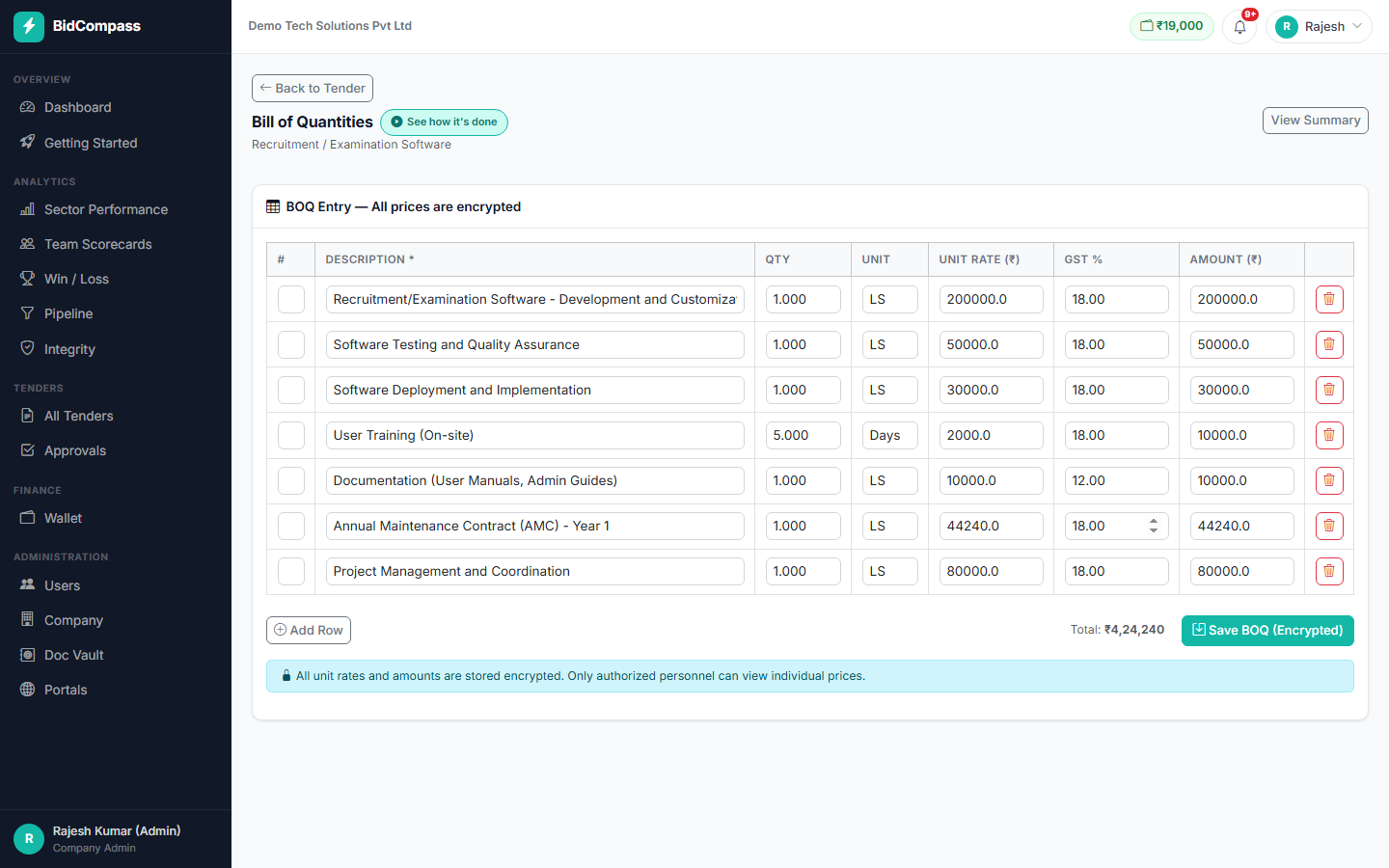
For works and supply tenders, BidCompass builds a line-item BOQ straight from the tender scope — you fill in your own rates.
Click "Enter BOQ" on the tender
AI has already broken the scope into line items — description, quantity and unit are pre-filled.
Enter your rate per line item
Amount is calculated automatically as Quantity × Rate.
Review the Summary
Totals, GST, and your final quoted price — costs ₹500 per tender.
Wallet & Pricing
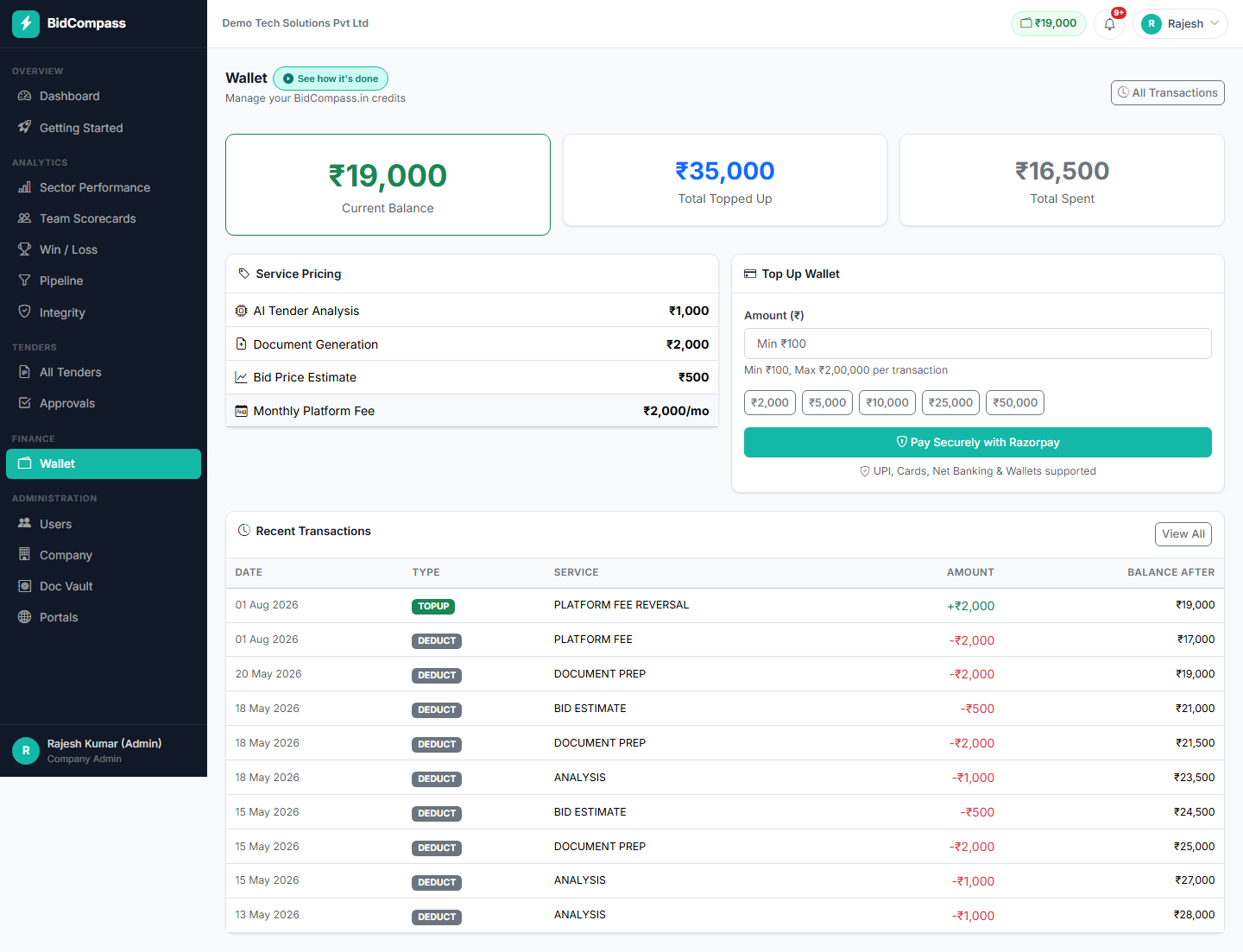
BidCompass runs on a prepaid wallet — pay only for what you use, no subscription.
| Service | Price |
|---|---|
| Tender Discovery | Free |
| AI Eligibility Check | ₹1,000 / tender |
| Bid Document Generation | ₹2,000 / tender |
| BOQ Estimation | ₹500 / tender |
Check your balance anytime
Current balance, total topped up, and total spent are shown on the Wallet page.
Top up via Razorpay
Choose a preset amount (₹2,000 / ₹5,000 / ₹10,000 / ₹25,000 / ₹50,000) or a custom amount from ₹100 up to ₹2,00,000, and pay via UPI, cards or net banking.
Review Recent Transactions
Every top-up and every deduction is logged with the balance after each entry, for full transparency.